App Icons & Theme Colors (Branding)
The Branding suite allows you to define your mobile app’s distinct visual identity, tailored to match your brand style.
Branding Configuration Screen
Section titled “Branding Configuration Screen”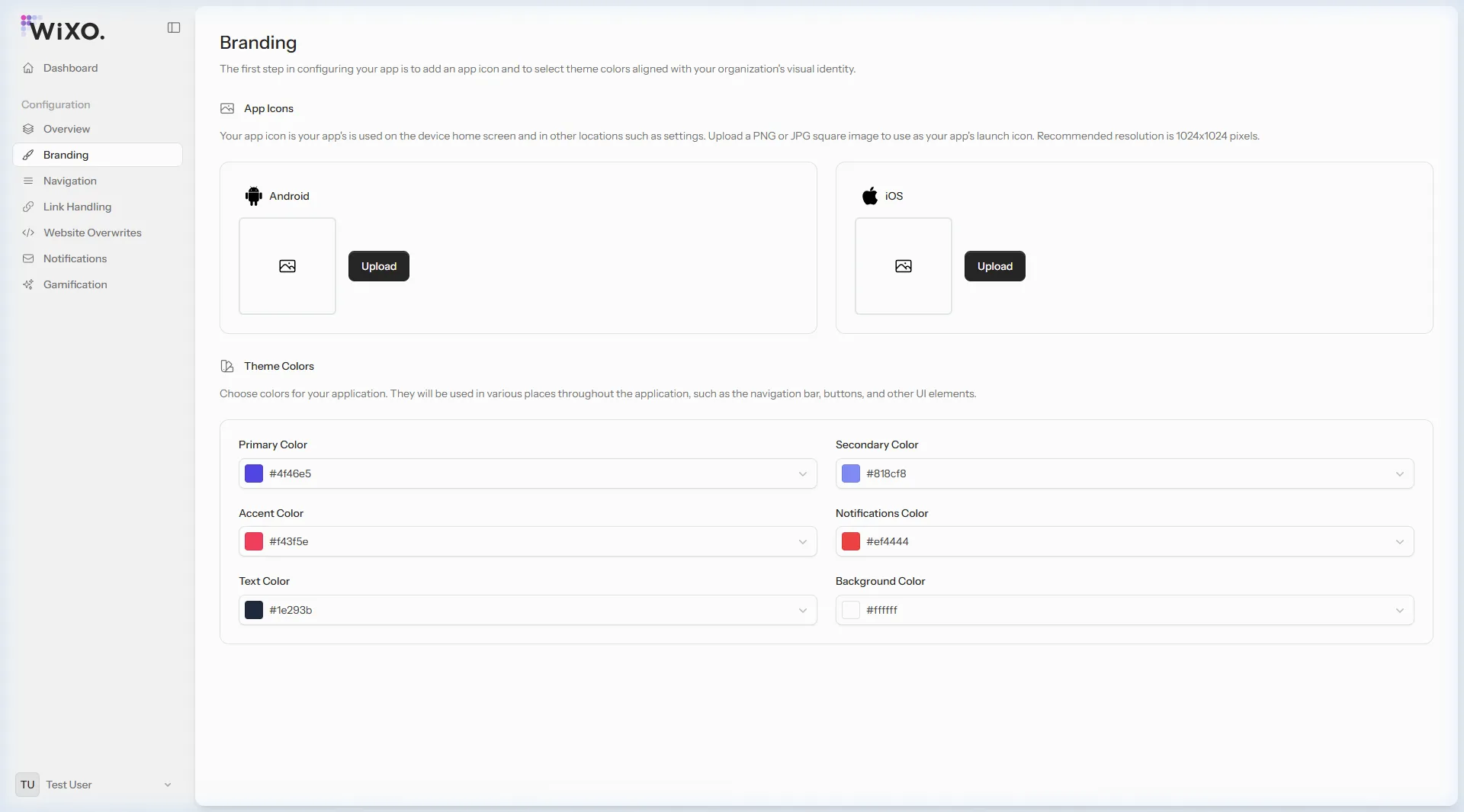
1. Uploading App Icons
Section titled “1. Uploading App Icons”Your app icon is the primary visual representation on user home screens, push notification prompts, and store listings (Apple App Store & Google Play).
- Format: PNG or JPG (PNG recommended).
- Recommended Dimensions:
1024 x 1024pixels (square). - How to upload: Click the Upload button under the Android card and pick your graphic asset.
- Format: PNG (no alpha channel / transparency, matching Apple store guidelines).
- Recommended Dimensions:
1024 x 1024pixels. - How to upload: Click the Upload button under the iOS card.
2. Theme Colors Palette
Section titled “2. Theme Colors Palette”Customize core system colors used across mobile chrome, status bars, and navigation:
| Color Token | Usage Description | Example HEX |
|---|---|---|
| Primary Color | Brand signature color for active buttons, tabs, and accents | #4F46E5 (Indigo) |
| Secondary Color | Supporting color for hover, focus, and secondary badges | #818CF8 |
| Accent Color | Vibrant highlight for sales, tags, and special calls-to-action | #F43F5E (Rose) |
| Notifications Color | Visual badge indicator for unread notifications | #EF4444 (Red) |
| Text Color | Foreground typography color for labels and menu texts | #1E293B (Slate) |
| Background Color | Shell background for bottom bars and headers | #FFFFFF (White) |
How to Modify Colors
Section titled “How to Modify Colors”- Click on the color swatch or dropdown arrow for the desired property.
- Select your tint using the interactive color picker or paste your exact HEX code (e.g.
#4F46E5). - Changes apply live to all client devices immediately upon app sync.