Login & Dashboard Navigation
Once your WiXO account is provisioned, you can access your management dashboard from any modern web browser.
1. Logging In
Section titled “1. Logging In”- Open your WiXO dashboard URL (e.g.
https://dashboard.wixo.appor your local development URL). - Enter your Email address and Password.
- Click the Log in button.
If you ever forget your password, click Forgot your password? to receive a password reset link to your registered email.
2. Main Applications Dashboard
Section titled “2. Main Applications Dashboard”After logging in, you will be greeted by the Applications Overview screen:
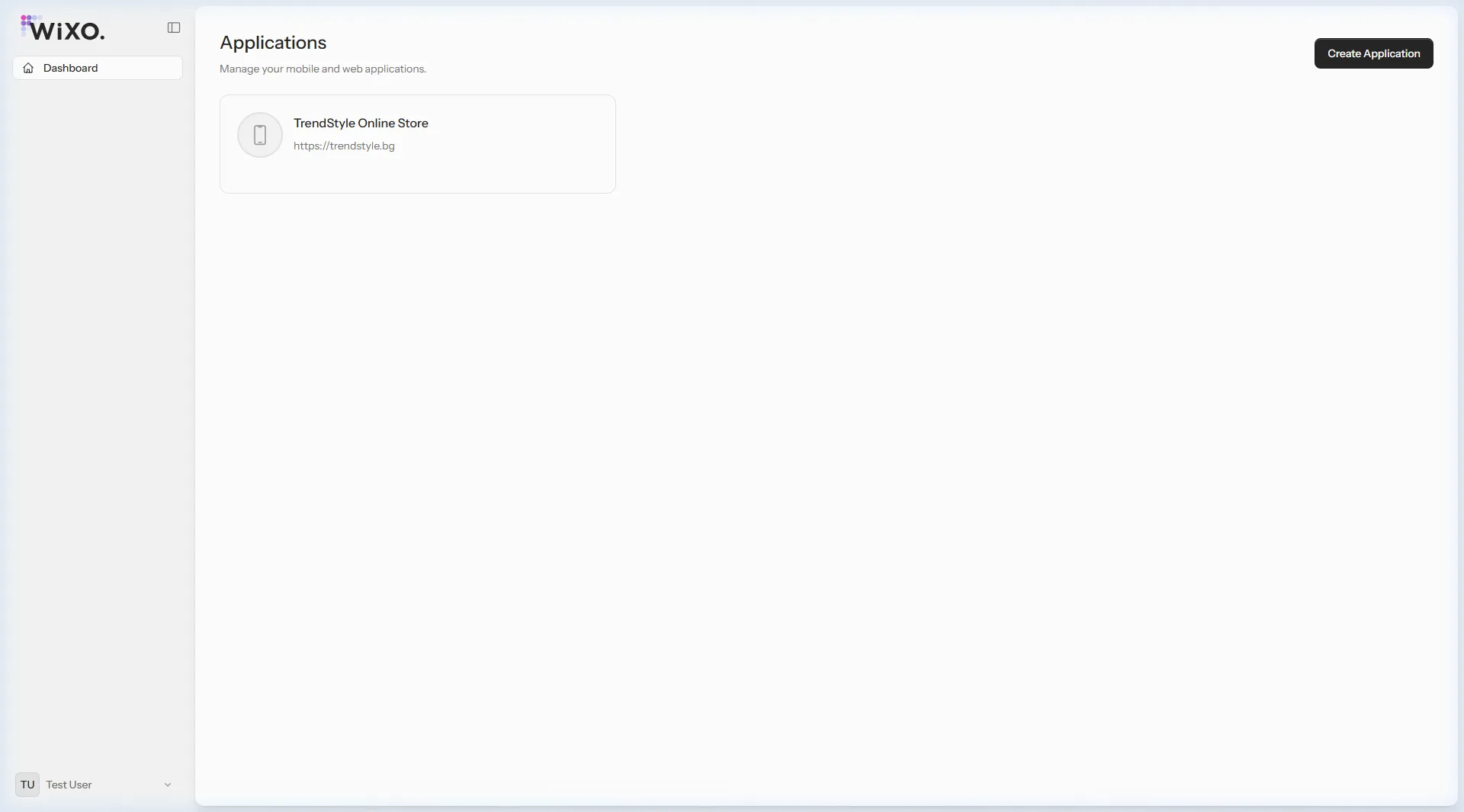
Key Screen Elements:
Section titled “Key Screen Elements:”- Left Sidebar:
- WiXO Brand: Quick return to the dashboard.
- Dashboard: Direct list of your active applications.
- Profile Menu (Bottom-left): Shows your active user name, profile settings, language switch, and logout.
- “Create Application” Button (Top-right): Initiates the setup wizard for a new mobile application.
- Application Cards:
- Each mobile application is represented with a card showing its name, website URL, and current status.
- Clicking on a card brings you straight into the application’s configuration suite (Branding, Navigation, Notifications, Gamification).